With the ESENTA Cloud Portal at portal.esenta.de, you can reach your ESENTA SIAS door intercoms from anywhere in the browser, without an on-site visit and without setting up your own VPN. You can see at a glance which devices are online, organize them into groups, and open a device's web interface with a single click.
This guide is intended for end customers and installers who use the portal.
You will need:
- an up-to-date browser (Chrome, Edge, Firefox, or Safari) with internet access
- the device token of your door intercom (a long string of characters from the device's web interface)
- for remote access: a door intercom that is connected to the internet
Finding the device token
The device token can be found in the web interface of your ESENTA SIAS under Cloud → General, in the Portal Cloud section, in the Cloud Portal Device Token field. It is a long string of characters that begins with eNo.
- Open the door intercom's web interface in your browser and sign in as administrator.
- In the menu on the left, select Cloud and then the General tab.
- In the Portal Cloud section, check that Enable Portal Cloud connection is switched on. If not: switch it on and click Save.
- Copy the token using the button next to the Cloud Portal Device Token field. The field only shows the beginning, but the copy contains the complete token.
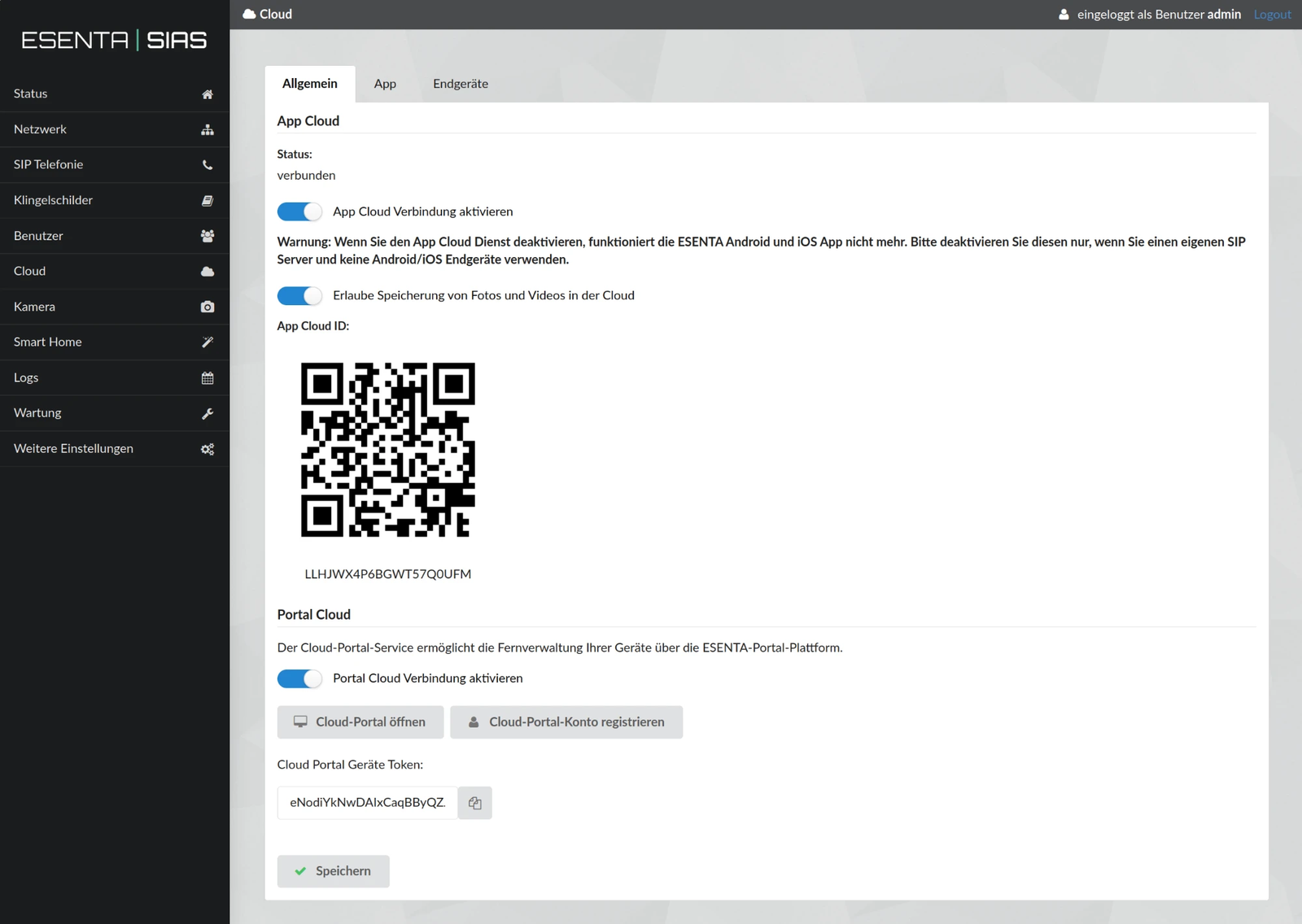
In the same section you will find two shortcuts:
- Register Cloud Portal account opens the registration page in the portal. The token is already filled in there.
- Open Cloud Portal takes you directly to the sign-in page at portal.esenta.de.
Do not confuse the token with the App Cloud ID and the QR code further up. Those are only used for setting up the ESENTA app.
Treat the token like a key: anyone who knows it can add the device to a portal account.
Getting started
For a new account you need a valid device token. Registration is not possible without a token. Each token can only be used once for a registration.
Registering an account
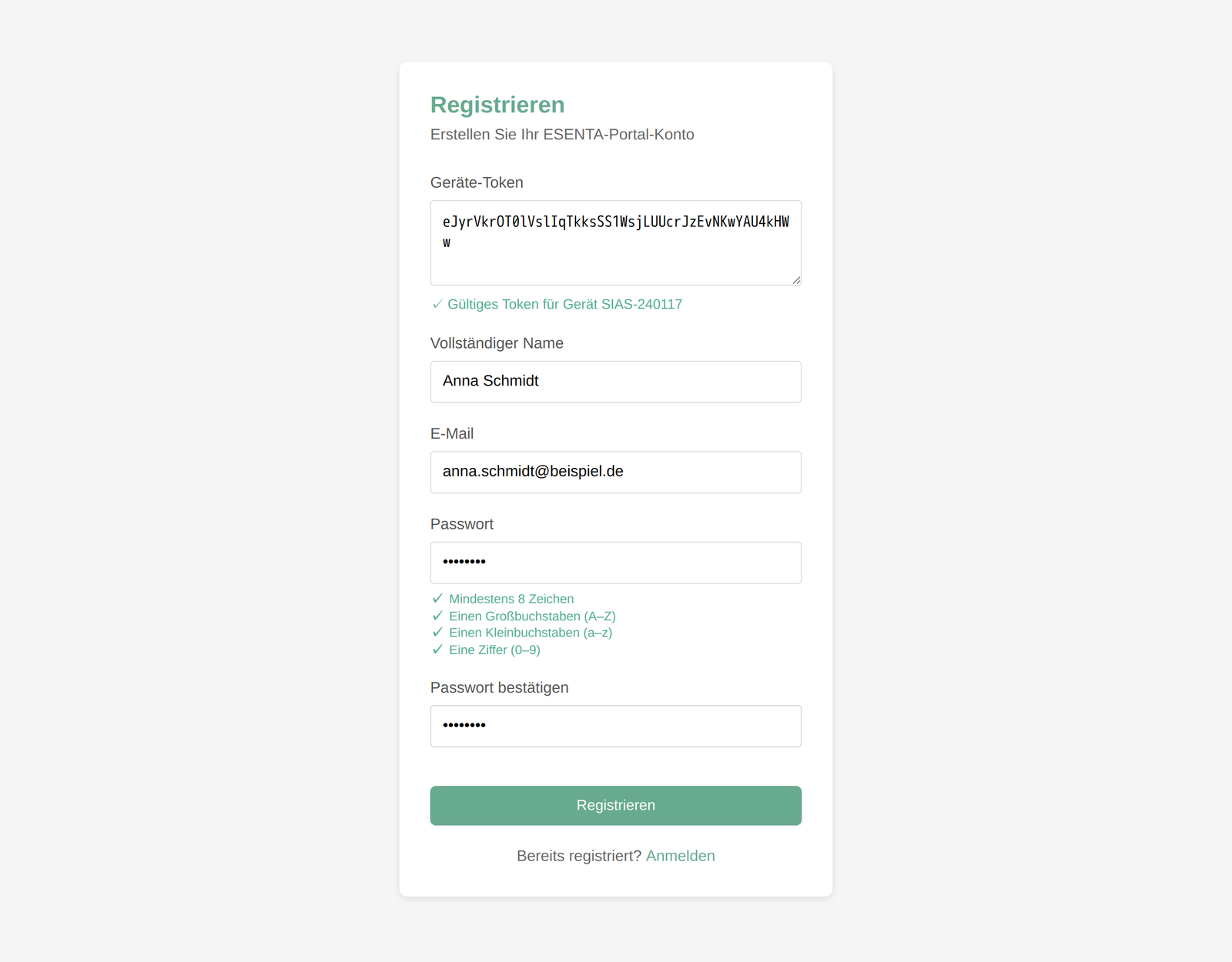
- In the door intercom's web interface, under Cloud → General, click Register Cloud Portal account. The registration page opens with the token already filled in. Alternatively, open the Register page and paste the token into the Device token field.
- The portal validates the token. On success, ✓ Valid token for device … appears with the serial number, and the form is displayed.
- Enter your name and email address.
- Choose a password and repeat it. A checklist below the field shows live which rules are already met.
- Click Register. After a brief confirmation, you will be redirected to the sign-in page.
Password rules:
- at least 8 characters
- at least one uppercase letter (A–Z) and one lowercase letter (a–z)
- at least one digit (0–9)
- no commonly used or well-known passwords such as "Password1"; the portal rejects these on submission
During registration, the portal checks whether the door intercom can be reached. For this, the device must be switched on and connected to the internet.
The device whose token you used during registration will already appear in your device list afterwards. Initially it is named after its serial number; use Edit to give it a meaningful name.
Signing in
- Open portal.esenta.de. You will land on the Sign in page.
- Enter your email address and password.
- Click Sign in. You will then see the dashboard.
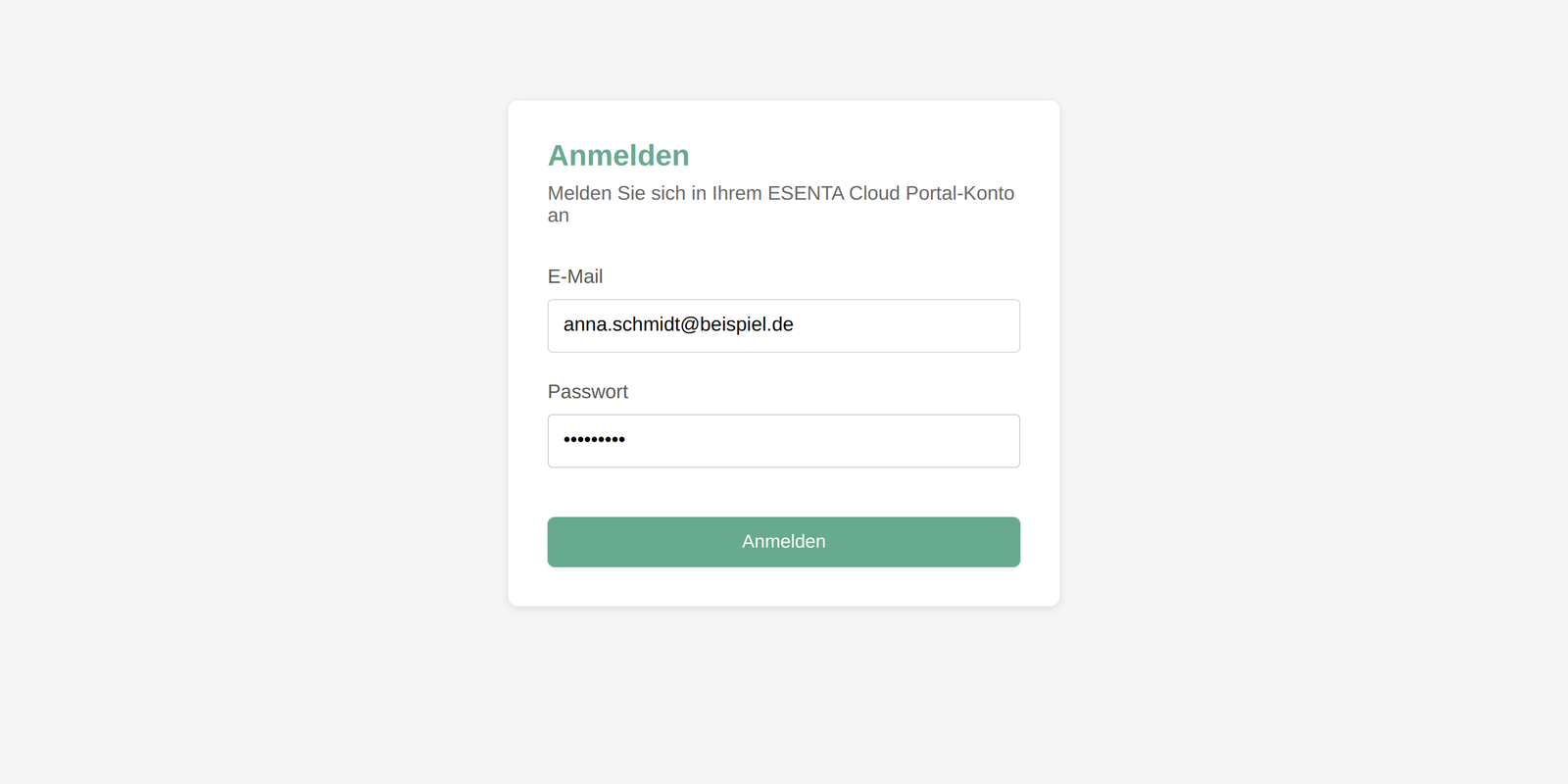
For security reasons, a session expires after some time. You will then be redirected automatically to the sign-in page, where you simply sign in again.
The interface at a glance
After signing in, you can reach all areas via the bar at the top.
| Menu item | What it is for |
|---|---|
| Dashboard | start page with device status and recently used devices |
| Devices | manage all devices and groups, add devices |
| Account | change your personal details and password |
| Sign out | end your session |
Dashboard
The dashboard shows three tiles at the top: the number of your devices, how many of them are online, and how many are offline. If a device is offline, the number appears in red.
Below that you will find two quick actions (Manage devices and + Add new device) and the Recently used devices list. With Open → you go directly to a device's remote access.
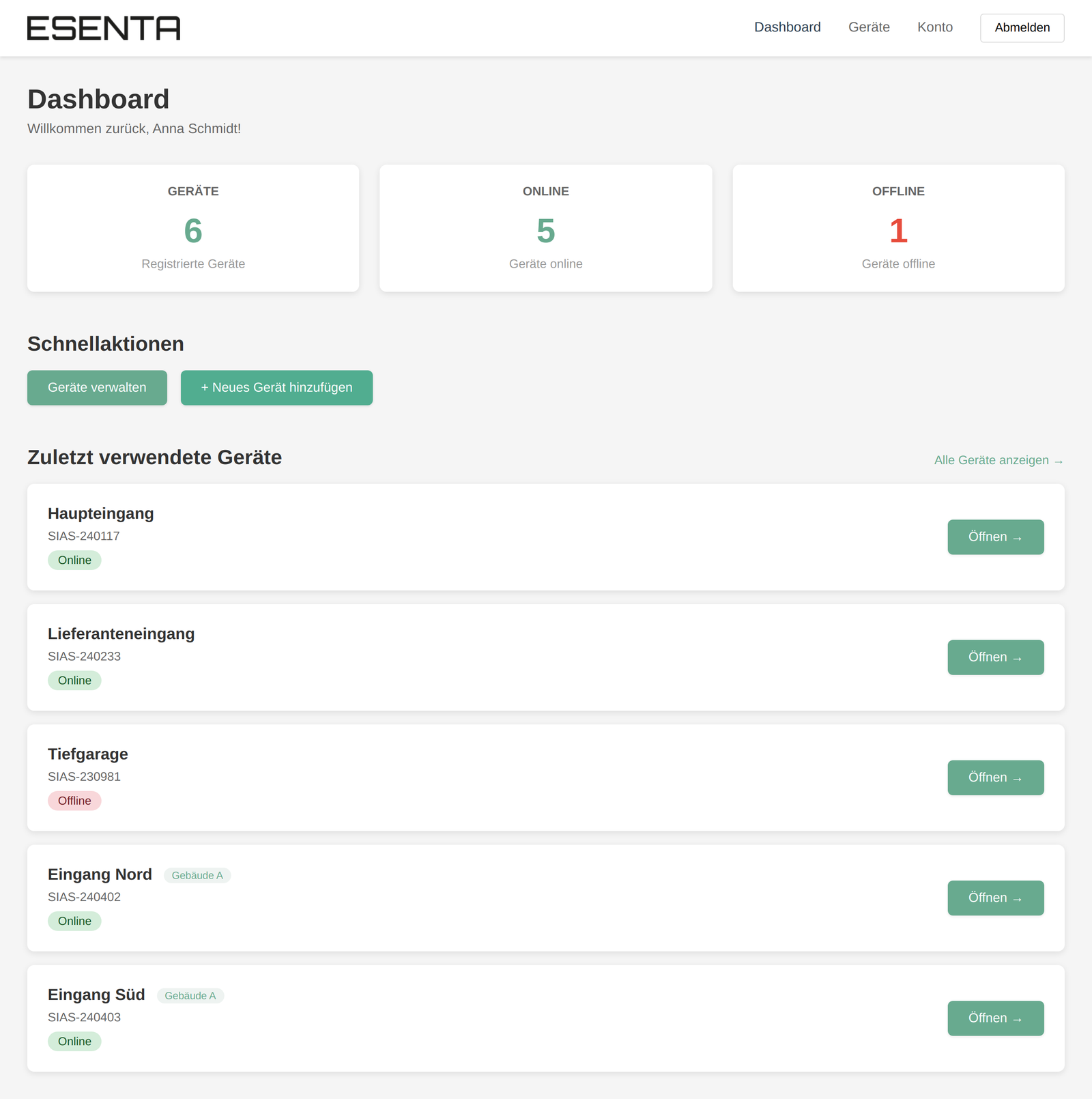
The online status updates automatically; you do not need to reload the page.
Managing and remotely operating devices
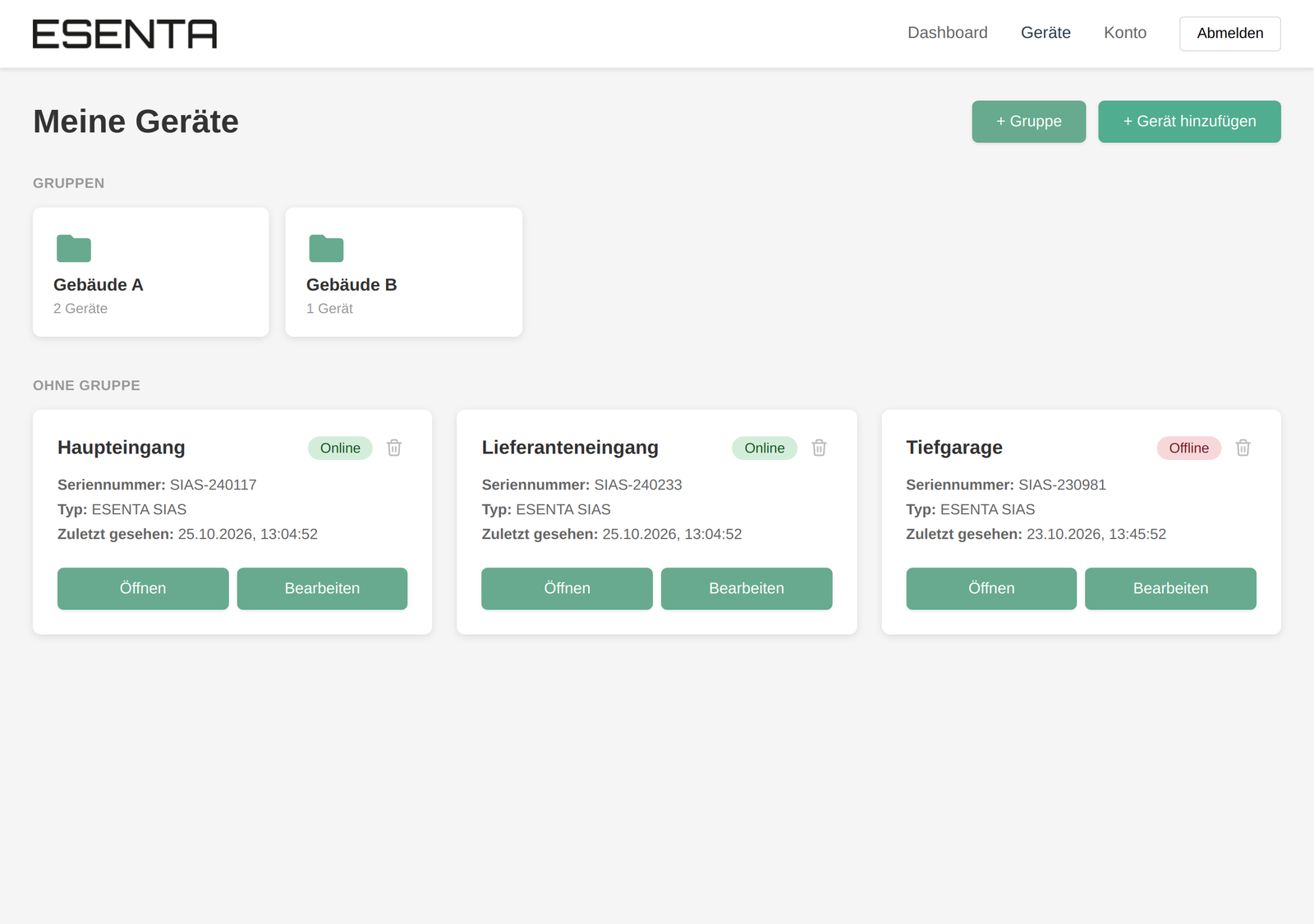
Under Devices you can see all your door intercoms. Groups appear at the top as folders, devices without a group below them as cards. Each card shows the name, online status, serial number, type, and the time the device was last seen.
Adding a device
- Click + Add device (or + Add new device on the dashboard).
- Paste in the device token.
- Assign a device name, e.g. "Main entrance".
- Optional: select a group and add notes, such as the installation location.
- Click Add.
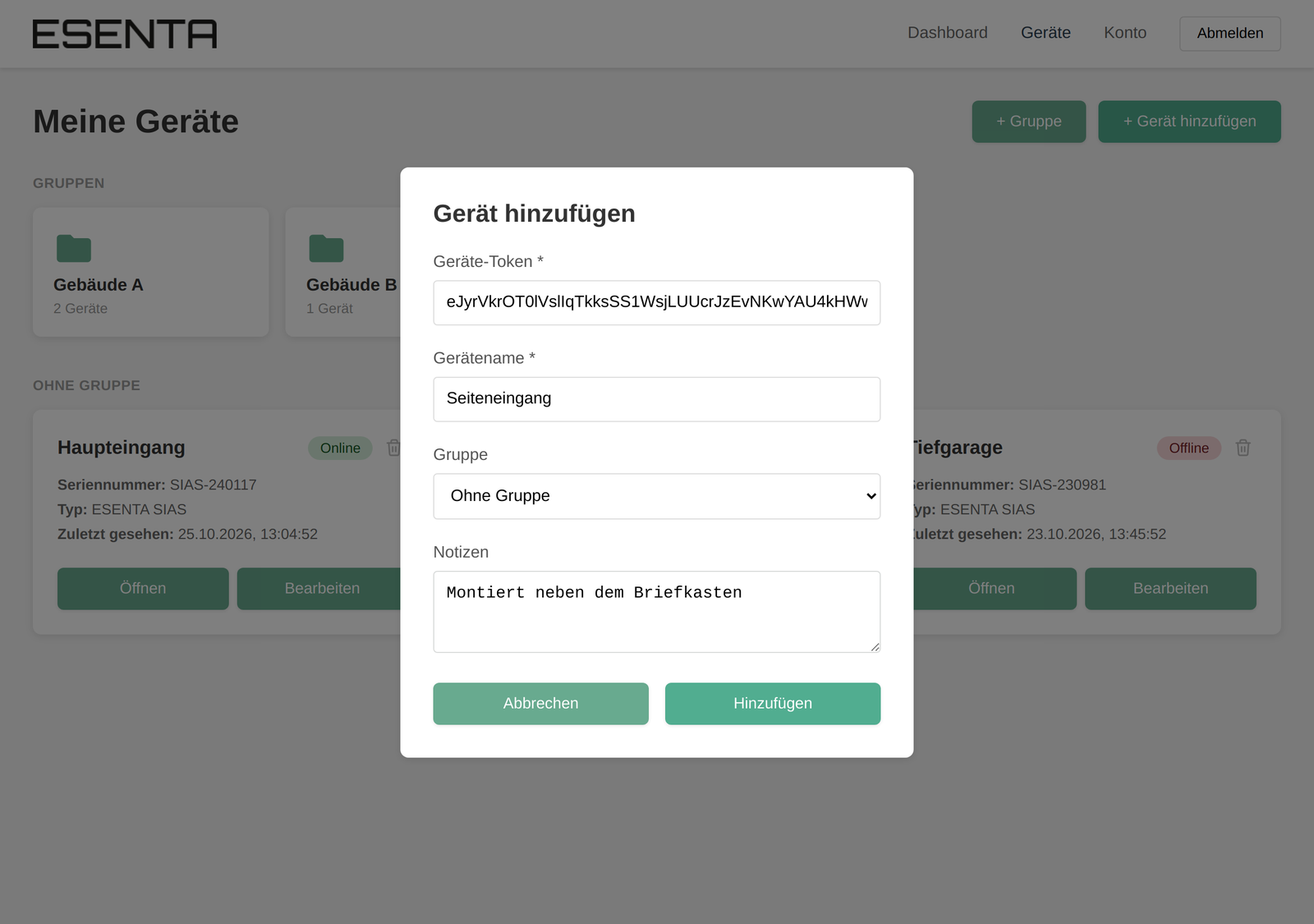
When adding a device, the portal contacts the device and checks whether the token matches. The device must be online for this. A device can only appear once in your account.
Remote access: opening a device
- On the device card (or on the dashboard), click Open.
- The portal establishes a secured connection. You will briefly see Activating remote access….
- The door intercom's web interface then appears directly in the portal. Sign in there with the door intercom's username and password and operate it just as you would on site.
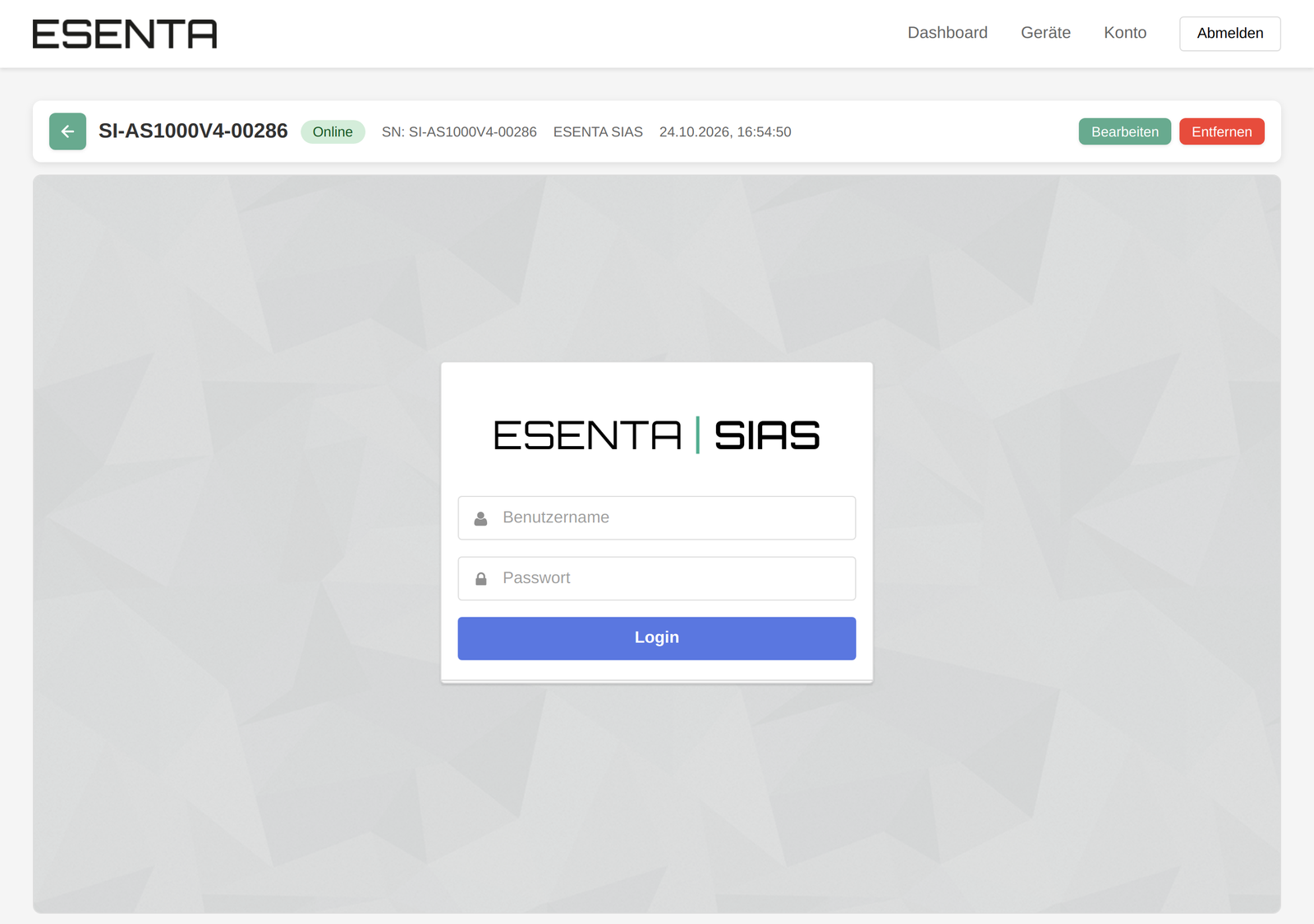
The header shows the name, status, serial number, type, last contact, and your notes. Use the arrow on the left to return to the device overview. The connection stays active as long as the page is open and ends automatically when you leave the page.
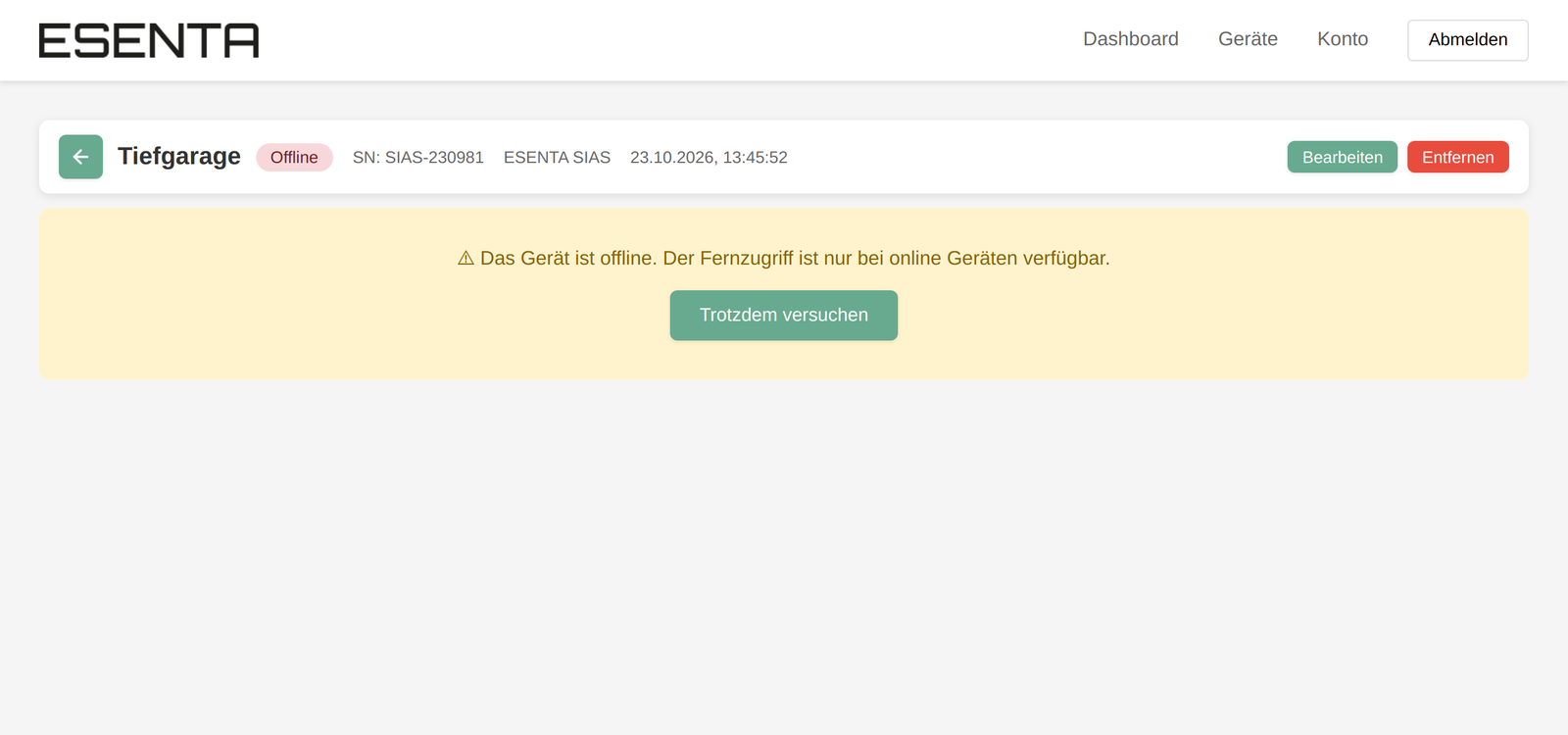
If the device is offline, the portal shows a notice. With Try anyway you can start the connection attempt regardless.
Editing a device
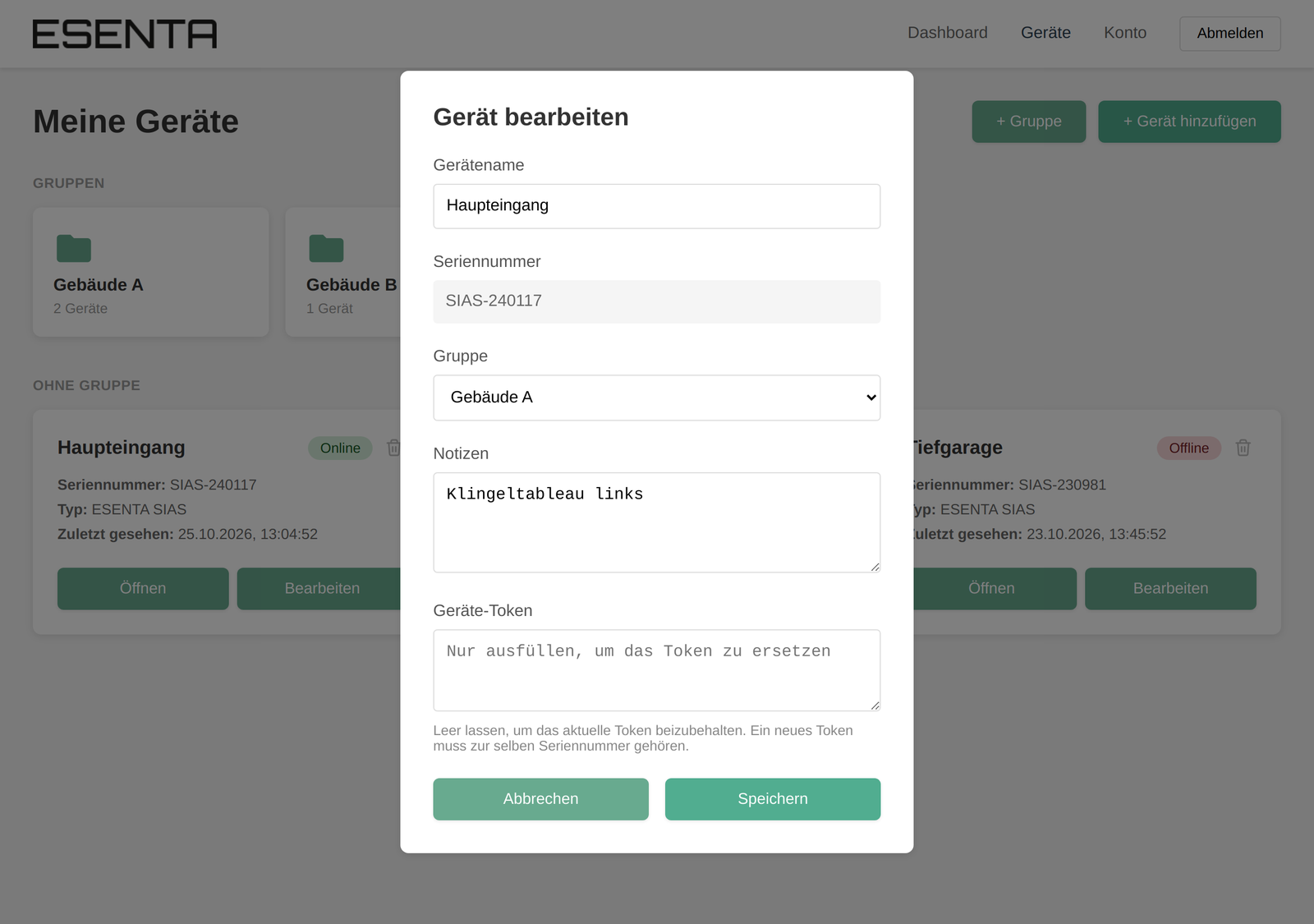
Via Edit (on the card or in the detail view) you can change the device name, group, and notes. The serial number is fixed.
In the Device token field, you can store a new token for the same device, for example after the system has been reset. If you leave the field empty, the existing token is kept.
Removing a device
Click the trash icon on the card, or click Remove in the detail view, and confirm the prompt. The device disappears from your account; nothing changes on the door intercom itself.
Using groups
Groups let you organize many devices, e.g. by building or customer.
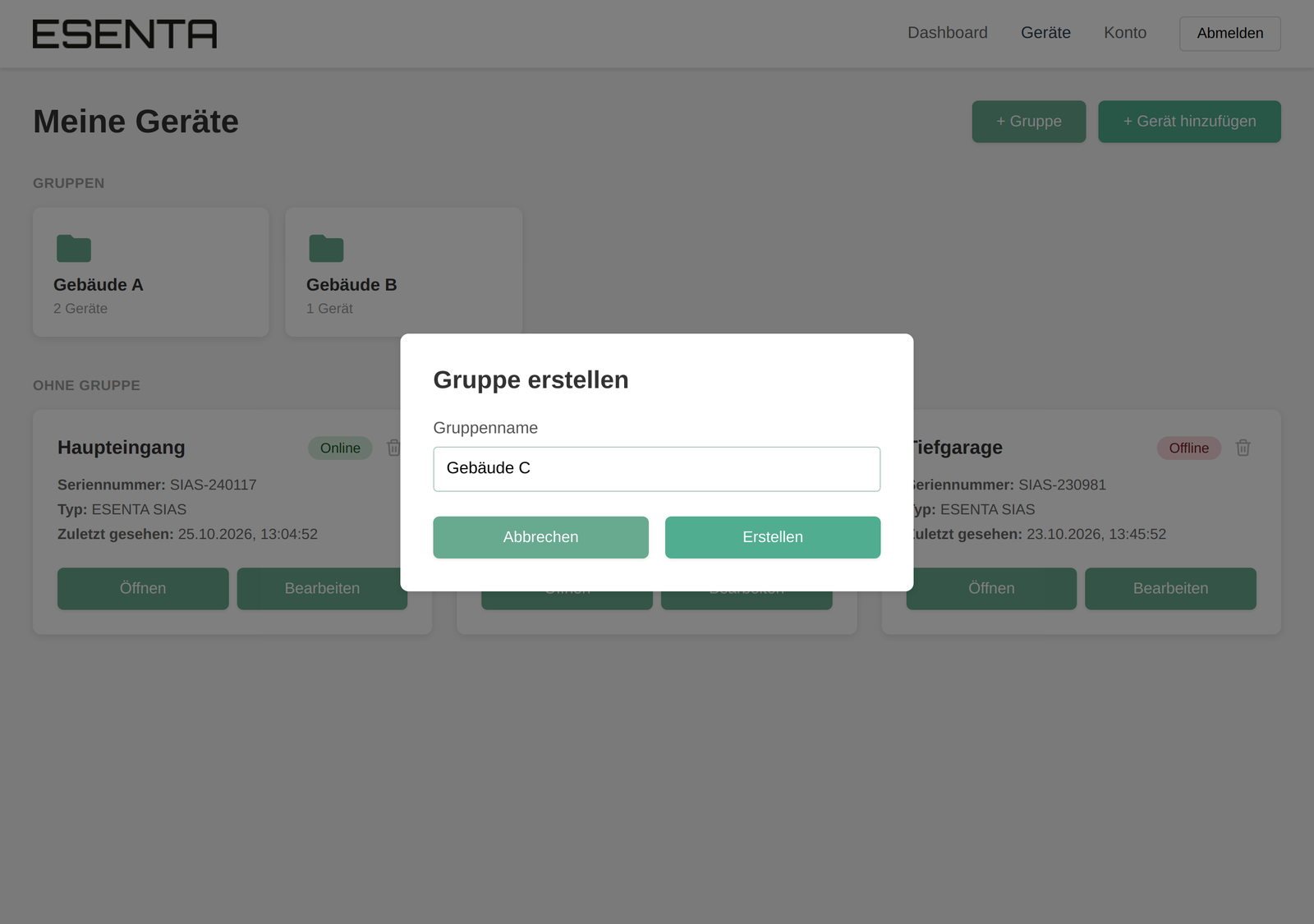
- Click + Group, enter a name, and choose Create.
- Assign devices via Edit → Group, or select the group directly when adding a device.
- Clicking a folder shows its devices. There you will also find Rename and Delete group.
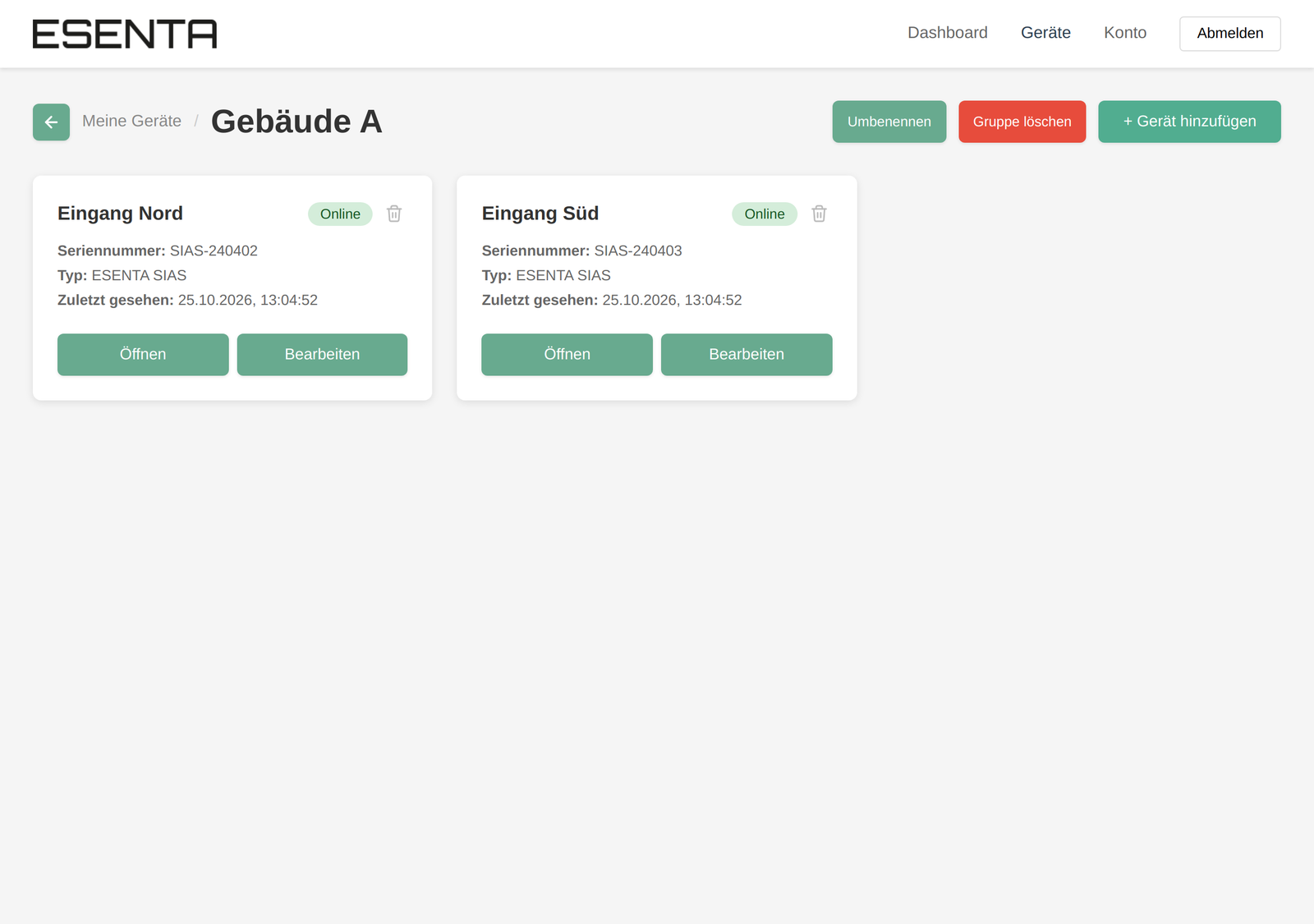
If you delete a group, its devices are kept. They then appear again under No group.
Account & settings
Under Account you can maintain your personal details and change your password.
Editing your profile
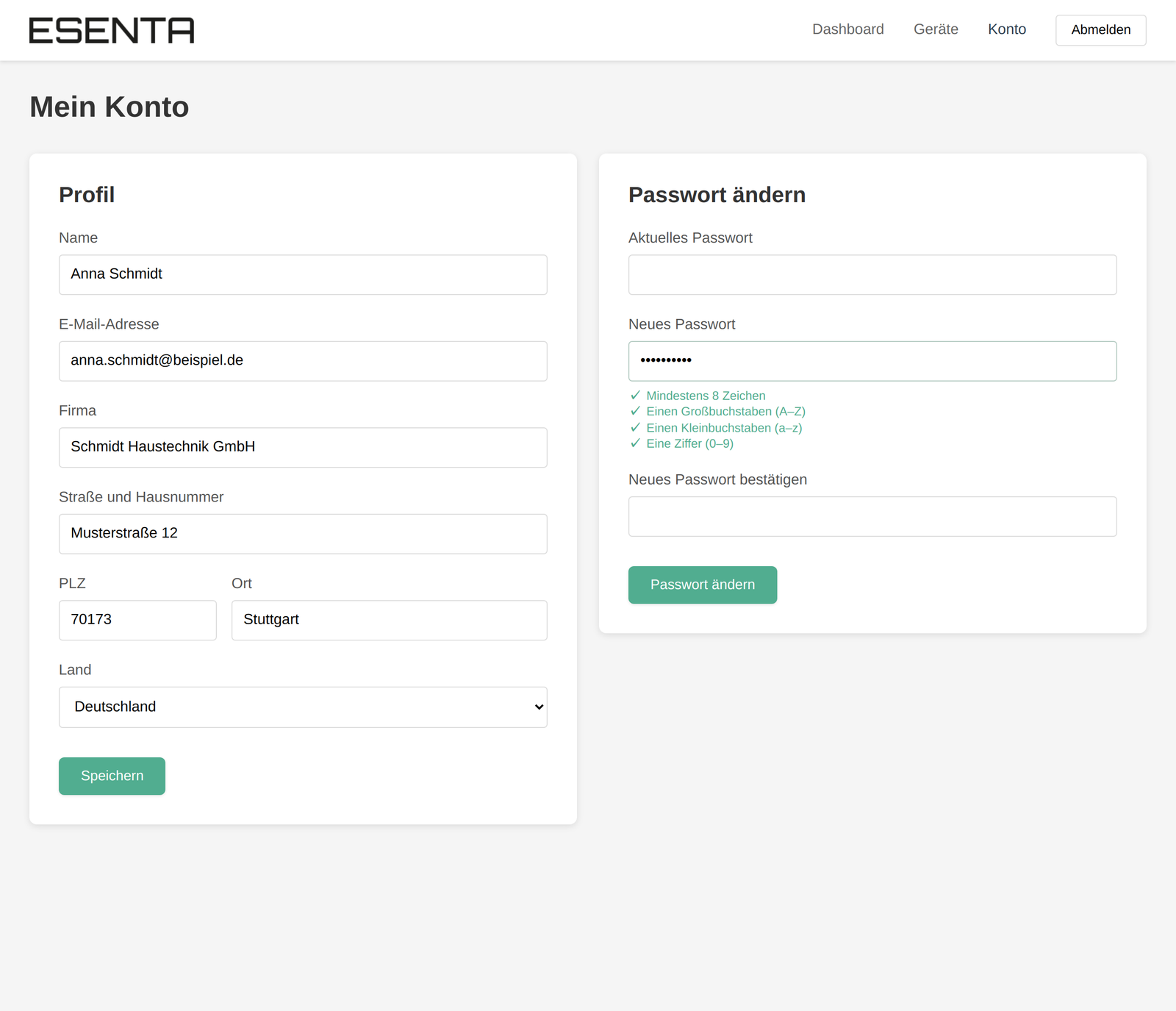
Enter your name, email address, company, and address (street, postal code, city, country) and click Save. If you change your email address, you will sign in with the new address from then on.
Changing your password
- Enter your current password.
- Enter the new password and confirm it. The checklist shows which rules are met.
- Click Change password.
Your devices remain fully usable after the password change.
Signing out
Click Sign out at the top right. Always sign out, especially on shared or third-party computers.
Note on the images: all screenshots show sample data (people, devices, serial numbers).


